

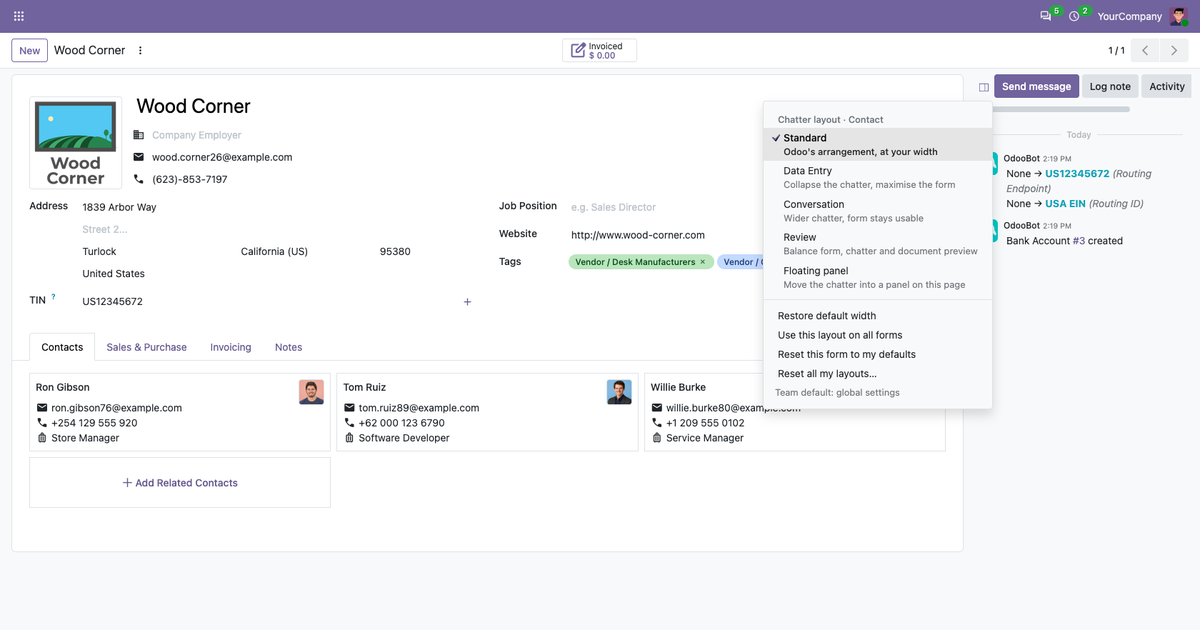
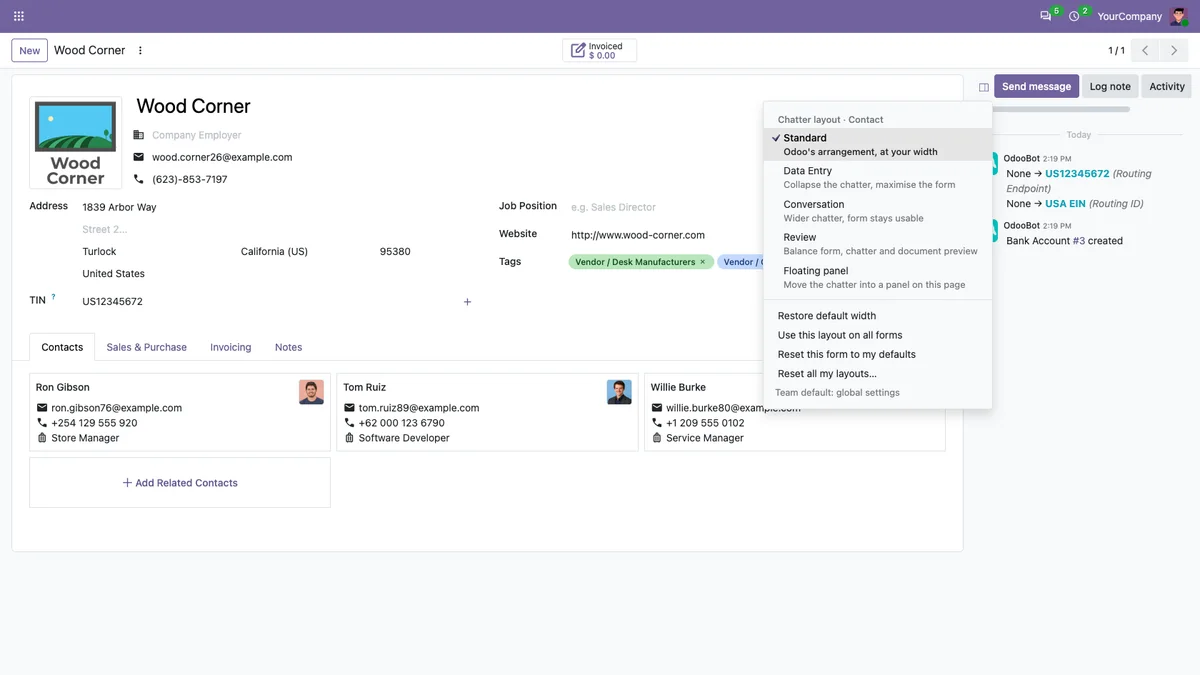
To resize the Odoo chatter with Chatter Workspace, drag the handle on its left edge. To hide it, select Data Entry from the layout menu. To move it out of the side column, select Floating panel. Parameter’s module supports Odoo 19 and 20 on Odoo.sh and self-hosted installations, with personal layouts saved across browsers.
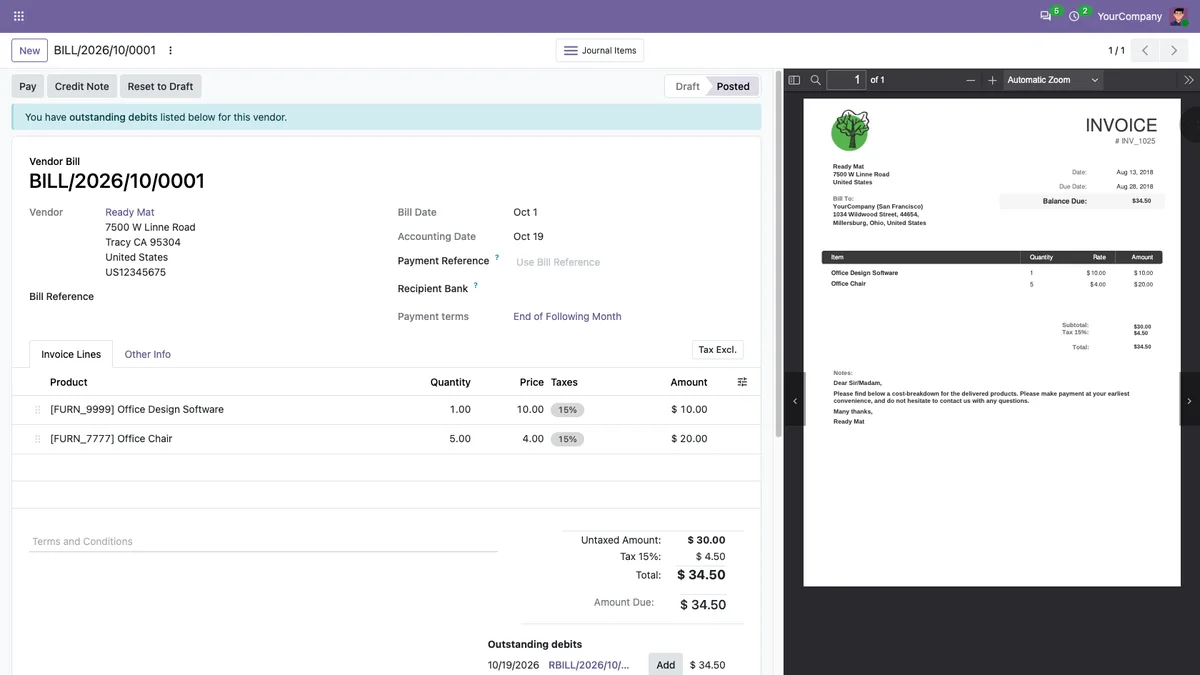
Some tasks need more room for fields. Others need more room for a conversation. Reviewing a vendor bill may mean keeping the form, a PDF and its discussion visible together.
We built Chatter Workspace to let users choose a layout for the task rather than work around one fixed arrangement. It changes how the chatter is displayed, not the underlying records, messages or access permissions.
View Chatter Workspace on Odoo Apps
What is Chatter Workspace?
Chatter Workspace is an Odoo module by Parameter that lets users resize, collapse or float the chatter on form views. It includes task-based layouts, personal preferences and administrator controls for team defaults, as described on its Odoo Apps listing.
Before installing, check these requirements:
- Odoo versions: 19.0 and 20.0, with a separate app download for each version.
- Editions: Community and Enterprise are listed as tested.
- Hosting: Odoo.sh or self-hosted Odoo. Odoo Online is not supported.
- Dependency: Discuss (
mail). - Interface: form views with a chatter, including custom models.
- Tested desktop browsers: Chrome and Firefox, using a mouse, trackpad or keyboard.
How do you make the Odoo chatter wider or narrower?
With Chatter Workspace installed, drag the thin handle on the chatter’s left edge. Move it to give either the form or the conversation more space. Double-click the handle, or press Enter while it is focused, to restore the default width.
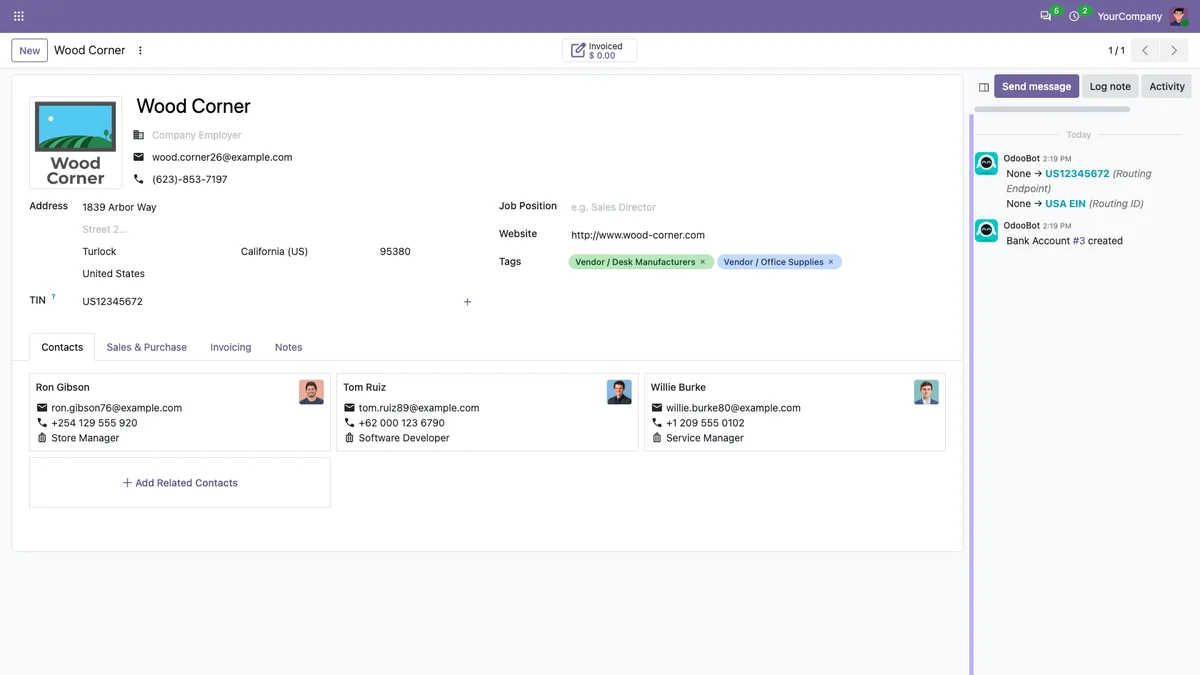
Keyboard users can adjust the width with the arrow keys, use Shift for larger steps, and use Home or End. Administrators can set the allowed width range; the default is 280 to 1000 pixels. The form retains at least 560 pixels so its fields remain readable.
For example, narrow the chatter while entering contact details, then widen it when you need to read a longer conversation. The change is to the workspace, not the record.
How do you hide the Odoo chatter without deleting messages?
Open the chatter’s layout menu and choose Data Entry. The chatter collapses into a slim strip, leaving more room for the form. Click the strip to bring it back at its previous width and layout.
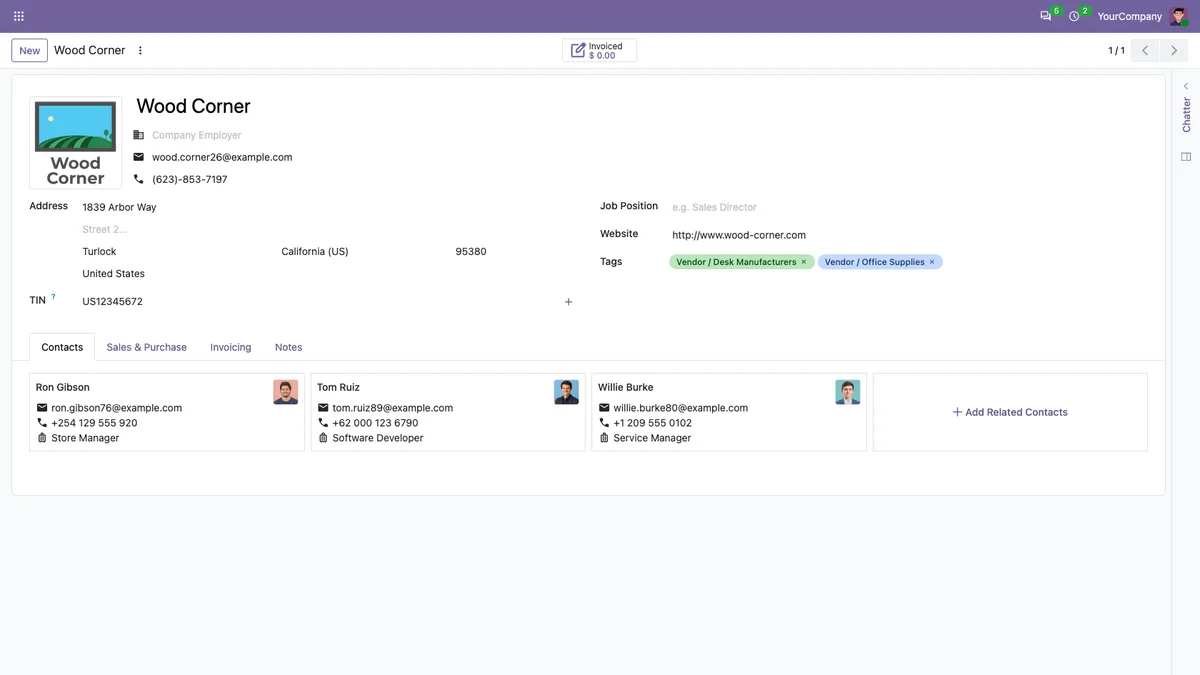
Collapsing is a display preference. It does not delete messages or hide them from other users.
Use this layout when the form is your main focus, such as entering details or checking a record’s fields, and reopen the conversation when you need its context.
Can the Odoo chatter float in a separate panel?
Yes. Select Floating panel to move the chatter into a draggable, resizable panel inside the same browser tab. This is not a separate browser window.
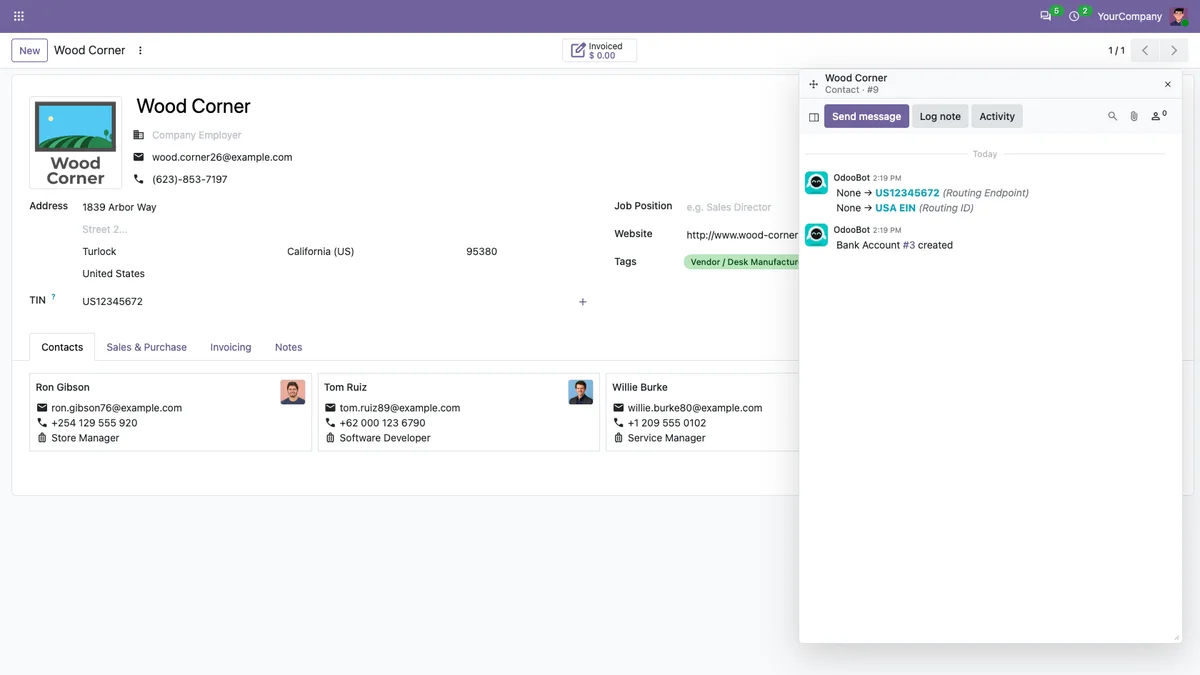
The panel shows the record name and form type, follows the next record when you use the pager, and returns the chatter to the form when you close it. It is kept within the browser window as the available space changes.
The floating layout is useful when you want to position the discussion yourself instead of reserving a fixed side column.
Which layout should you use?
Choose the arrangement that matches the work in front of you:
- Standard: keep Odoo’s usual arrangement with your chosen chatter width.
- Data Entry: collapse the chatter and give the form as much room as possible.
- Conversation: widen the chatter for reading and answering messages.
- Review: use an even split; on supported forms with Odoo’s document preview, keep the preview arrangement and chatter visible.
- Floating panel: move and resize the chatter inside the current tab.
For a vendor bill with a PDF, Review preserves Odoo’s document preview rather than replacing it with a different document viewer.
Are personal layouts remembered across browsers?
Yes. Chatter Workspace saves layout preferences on the server for each user. Users can keep a layout for a particular form type, such as contacts, or choose a default for all forms. Preferences return after reloading and when using another browser or computer.
A narrower laptop window can display a narrower chatter without overwriting the width saved on a larger monitor. Users can reset the current form’s layout or all their layouts from the menu, subject to administrator settings.
Can administrators set chatter layouts for a team?
Yes. In Settings > General Settings > Chatter Workspace, administrators can choose available features, width limits, a default layout and whether personal layouts are allowed.
Team rules can target form types and user groups, apply priorities, and lock the layout or width where needed. An effective-layout check shows which setting or rule determines a user’s layout. These settings apply across the database and every company within it.
That gives teams a shared starting point without requiring every user to configure the same screen manually.
How to install Chatter Workspace
Have your Odoo administrator install the version that matches your Odoo major version:
- Open the Chatter Workspace listing and choose the matching version.
- Add the
parameter_chatter_resizefolder to your addons path. For Odoo.sh, add the module to the appropriate repository branch. - Update the Apps list and install Chatter Workspace.
- Reload Odoo, open a form with a chatter and select the layout icon.
- Optionally configure team defaults in Settings.
Try the module in a staging environment before adding it to a production database. Do not install it alongside another module that resizes, hides or moves the same form chatter.
Frequently asked questions
Does Chatter Workspace work with Odoo Online?
No. Chatter Workspace requires Odoo.sh or a self-hosted installation. It is not available for Odoo Online SaaS.
Will switching layouts remove an unsent message?
Switching between collapsed and floating layouts preserves the existing chatter composer, including an unsent message or log note and its attached files. Drafts stay associated with the record where they were written. This is layout-switching behavior, not a promise of draft recovery after a browser closes or crashes.
Does it change Odoo message permissions?
No. Chatter Workspace changes the screen arrangement. Odoo access rights and record rules remain unchanged.
Does it work on small screens or mobile devices?
The layout adapts to the window size. The listing specifies side chatter from 1534 pixels, a minimum width of 992 pixels for the floating panel, and Odoo’s standard chatter below 768 pixels. Desktop mouse, trackpad and keyboard use is tested; touch resizing is not claimed.
Does the module store conversation content?
The module stores users’ layout choices, not message content or drafts, and the listing states that it uses no tracking or external service. This describes the module’s additional storage; Odoo continues to manage its own records and conversations.
Where can I check pricing and get help?
See the Odoo Apps listing for current pricing and the version you need. For product questions or configuration help, email support@parameterllc.com.
Give the task the space it needs
Use Data Entry when the form needs your attention, Conversation when the discussion matters most, and Review when you need the document and its context together.
Get Chatter Workspace on Odoo Apps
Need a broader change to your Odoo workflows? Explore Parameter’s Odoo development services or Odoo support and optimization.
Product documentation: Chatter Workspace on Odoo Apps.
Related Odoo services
Ready to get Odoo working for your business?
Start with the free Odoo Assessment: a first conversation, then a written Preliminary Scope within 5 business days. Not sure Odoo fits yet? The Odoo Score tells you in under 3 minutes.