

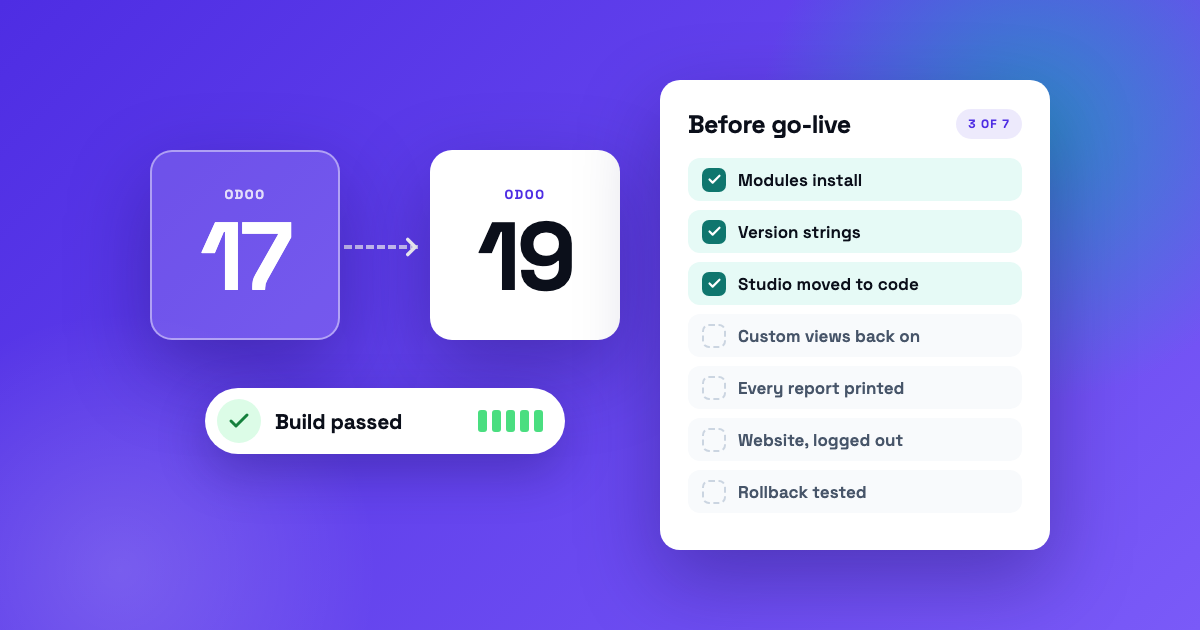
An Odoo 17 to 19 upgrade has a satisfying moment: the build goes green. Every module installs, the database opens, the screens load. It’s tempting to call that done.
It isn’t. We recently moved a live, customized Odoo system from 17 to 19, and almost everything that went wrong went wrong after a green build. Here is what broke, or nearly broke, and the check that catches each one sooner.
Key takeaways
- A green upgrade build proves the code installs. It doesn’t prove your fields, views, reports or pages survived.
- Odoo drops what the new code no longer defines, and its upgrade platform switches off custom views it can’t validate. Neither one raises an error you’ll see.
- Studio changes, website builder edits and scripts loaded from outside Odoo are the first things an upgrade loses.
- Some breaking API changes show up only at runtime, so test every screen, report and website as real users, including anonymous visitors.
- Rehearse on a copy of live data, write the runbook down, and keep a tested way back.
Why an Odoo 17 to 19 upgrade breaks after the build passes
A build checks that your modules install on the new version. It doesn’t check what the upgrade removed along the way, what only fails when someone clicks it, or what never lived in your code at all.
That last group is the dangerous one. A real Odoo system collects behavior in places a build never looks: Studio, the website builder, report copies, and scripts loaded from another server. On paper the system is your modules. In reality it’s everything those modules plus your team have done to it over the years.
Before you upgrade: find what the upgrade will drop
1. Inventory everything that changed during the project. Odoo quietly drops fields and views the new code no longer defines, so anything added on the live system while you were building the upgrade survives only if your code carries it. Keep a running list of every change made on live after you branch, and decide for each one: port it, already ported, check it at runtime, or not needed.
2. Check every module’s version string. A custom module whose manifest still says 17.0 is silently left out on 19. No error, just a missing module and everything that depended on it.
3. Move Studio customizations into code. Studio changes live in the database, not in your repository. Port them into a module before the upgrade, so the next update can’t undo them and you can see them in review.
4. Find behavior that lives outside Odoo. If parts of your storefront are loaded by scripts from another server, nobody may have written down what they do. Rebuilding them inside Odoo surfaces features that only existed in those scripts. Find them before go-live, not when a customer asks where they went.
5. Decide who owns client-edited content. Module updates overwrite content that came from the module’s data files, including pages the client has since edited in the website builder. Make that content client-owned before you update, or the update will put back the old version.
In testing: what fails only at runtime
6. Expect renamed fields and removed services. Some API changes fail only when the code runs, not at install. In this upgrade, the user groups field was renamed from groups_id to group_ids, and the old JavaScript RPC service was gone. One menu item still calling it blanked the whole back office.
7. Archive stale website builder copies. When someone edits a page in the website builder, Odoo stores a copy of that view. Those copies aren’t migrated with the original views. Stale copies made the storefront fail until they were archived.
8. Print every report before the first live order. A Studio copy of the quotation report still used a removed field. It didn’t fail at install. It failed when a salesperson tried to confirm an order.
9. List every core route your overrides replace. A controller override that declares its own list of addresses replaces the core list rather than adding to it. The shop’s category pages disappeared until every core address was listed again.
10. Test every website as an anonymous visitor. A visitor-facing template that read a staff-only record turned a whole page into an access error. Anyone logged in as staff saw a working page, so nobody on the team noticed.
11. Check the compiled stylesheet, not just the build. A styling compile error doesn’t fail the build. Odoo keeps serving the previous stylesheet, so the site just looks wrong, and it looks wrong in a way that’s easy to blame on caching.
12. If you cache pages, key the cache by domain. With two websites on one database, a page cached for one address was served on the other, with the wrong search settings. Any cache you add has to know which website it’s caching for.
The upgrade platform has its own rules
13. Plan to switch custom views back on. Odoo’s upgrade platform switches off custom views it can’t validate, and they don’t come back by themselves. Write the step that switches them back on after the update, and run it automatically, so it doesn’t depend on someone remembering.
And know what each Odoo.sh button does. On Odoo.sh, rebuilding a staging branch replaces that branch’s database with a fresh copy of production. Rehearse on a separate branch you can afford to reset. Restoring a backup also doesn’t update your custom modules, so a restore is not a deploy.
A cutover plan that survives go-live day
Most of the checks above are cheap. The expensive mistakes happen on go-live day, when decisions get made under pressure. Write them down in advance:
- A decisions log. What you decided, and why, so nobody relitigates it at 2 a.m.
- A runbook with gates. Ours had 37 steps and five go/no-go gates. Each gate says what has to be true to continue.
- Rehearsals on real data. Run the full upgrade on a copy of the live database, at least twice. The final rehearsal also tells you how long the real cutover takes.
- A tested way back. A tagged copy of the old code and fresh database backups taken right before the push.
- People on hand afterward. The first days after go-live are part of the upgrade. Ours brought 130 follow-up commits, fixes and client requests together.
| Check | When |
|---|---|
| Changes made on live since you branched | Weekly, and again at the freeze |
| Module version strings | Before the first test upgrade |
| Studio customizations ported to code | Before the first test upgrade |
| Behavior loaded from outside Odoo | Before the first test upgrade |
| Client-edited pages made client-owned | Before every module update |
| Every report printed | Every rehearsal |
| Every website tested logged out | Every rehearsal |
| Compiled stylesheet checked | Every rehearsal |
| Custom views switched back on | Right after the update |
| Rollback copy and backups | Right before the push |
Upgrading Odoo without the surprises
Odoo upgrades fail in boring, predictable ways. The fix is just as boring: make a list of everything that isn’t plain module code, test the system the way real people use it, and rehearse on real data until go-live is the third time you’ve done it.
If your Odoo is two versions behind, or your setup has Studio changes, builder-edited pages or outside scripts, that’s the work our Odoo upgrade service is for. You can also read how we ran a live Odoo 17 to 19 upgrade for a specialty printer, with the storefront redesign shipped in the same release. If the upgrade is part of a bigger go-live, our notes on preparing for an Odoo go-live cover the rest.
Related Odoo services
Ready to get Odoo working for your business?
Start with the free Odoo Assessment: a first conversation, then a written Preliminary Scope within 5 business days. Not sure Odoo fits yet? The Odoo Score tells you in under 3 minutes.